For teachers
The courses that come with the MoBot kits are built for a real class period: lessons in order, a stated duration, a materials list — and no student email addresses to collect.
Built for a class period
Each course is a numbered sequence of lessons. Before opening one, you see its estimated duration and the materials it needs: enough to know what fits in the period and what to take out of the boxes.
The first course of every kit is open to everyone: you can evaluate the content in full, with no account and no commitment.
One activation for the group
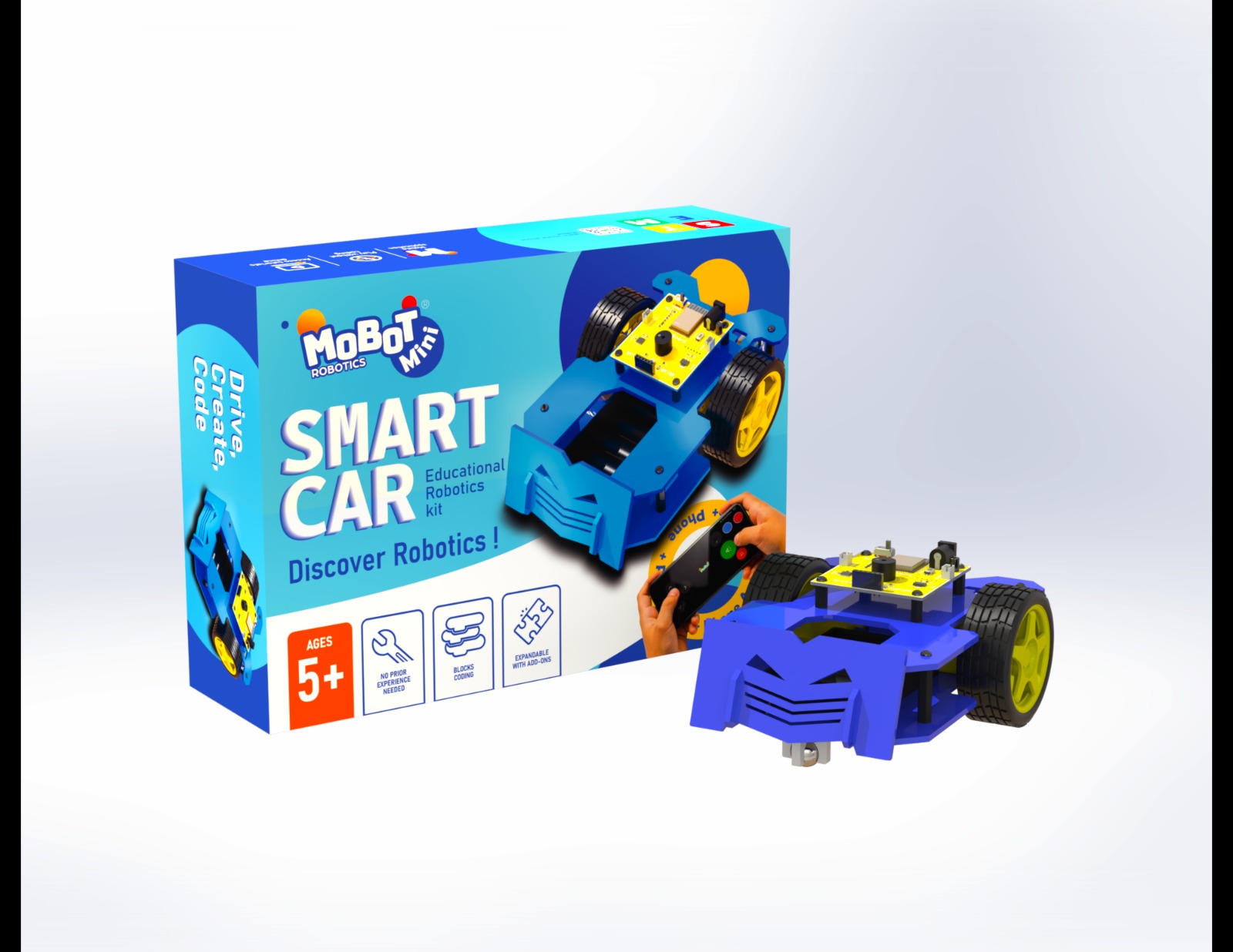
Activation comes with every box and covers several learners in the same household. To equip a whole class, packs with per-student seats exist.
For a class pack or a quote, go through the contact page of the mobot.dz store.
Students without email addresses
The platform never asks a student for an email. On a shared device, each child finds their work again with their printed badge card, shown to the camera — nothing to type.
A lost card gets reprinted, and the old one stops working. A badge only signs in: it opens nothing else.
Nothing is public: no chat, no comments, no profiles visible between students.
You can also group your students into a class with a join code, and follow everyone’s progress in one grid. Create a class
Your machines are enough
- Designed first for an entry-level Android tablet and an old browser
- A slow or intermittent connection is enough; a lesson already visited reopens without the network
- Progress is saved on the device, even without any account
Four languages
The platform works in Arabic, French, English and Spanish — Arabic with a true right-to-left layout. Each lesson says honestly when a translation is still missing, rather than hiding it.
Paper is here
Every course has a teacher’s guide, and every lesson a printable sheet — to prepare the session and keep the class working away from screens. You will find them on the pages themselves: “Teacher’s guide” on the course page, “Print” on each lesson.